Microsoft 2007 Setup Instructions
Use these detailed, step-by-step instructions with screen shots to set up Microsoft Outlook 2007 to work with your personalized email account provide by EmailAddressStore.com. You can set up previous versions of Microsoft Outlook by using these settings.
The main information you will use is:
User Name: your full email address, ie You@YourDomainName
Password: as you setup
Incoming mail server for POP3 accounts: pop.secureserver.net, or
Incoming mail server for IMAP accounts: imap.secureserver.net
Incoming server port for POP 3 accounts: port 110, or
Incoming server port for IMAP accounts: port 143, or if you have SSL enabled, use 993.
Outgoing mail server (SMTP): smtpout.secureserver.net
Outgoing mail server (SMTP) requires authentication - it does not require "secure password authentication (SPA)".
- Start Microsoft Outlook 2007. When the Startup Wizard displays, click Next.
NOTE: If the Startup Wizard doesn't automatically display, go to the the Tools menu, select Account Settings, and then click New.
- In the Add New E-mail Account dialog box, select Microsoft Exchange, POP3, IMAP, or HTTP, then click Next.

- On the Account Configuration page, select Yes to indicate you want to configure an email account, and then click Next.

- On the Auto Account Setup page, enter the following:
- Your Name
- Enter your name as you want recipients of your messages to see it
- E-mail Address
- Enter your email address.
- User Name
- Enter your full email address again.
- Password
- Enter the password you set up for your email account.
- Retype Password
- Enter your password again.
At the bottom of the page, select Manually configure server settings or additional server types, and then click Next.

- On the Choose E-mail Service page, select Internet E-mail, and then click Next.

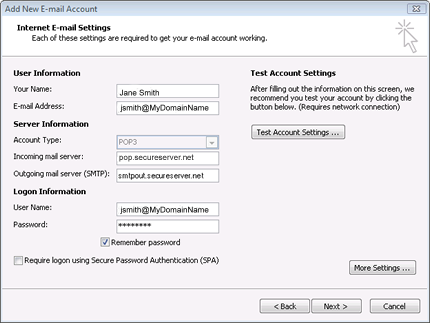
- On the Internet E-mail Settings page, enter your email account information as follows:
- Your Name
- Enter your name as you want recipients of your messages to see it
- E-mail Address
- Enter your email address.
- Account Type
- Select POP3.
- Incoming mail server
- Enter pop.secureserver.net for your incoming mail server. OR For POP accounts, enter pop.secureserver.net for your incoming mail server; or for IMAP accounts, enter imap.secureserver.net.
- Outgoing mail server (SMTP)
- Enter smtpout.secureserver.net for your outgoing mail server.
- User Name
- Enter your email address again.
- Password
- Enter the password you created for your email account.
- Select the Remember Password checkbox, and then click More Settings.
- In the Internet E-mail Settings window, go to the Outgoing Server tab. Check My outgoing server (SMTP) requires authentication and select Use same settings as my incoming mail server.

- Go to the Advanced tab. Verify that you have 110 for your incoming server (POP3) and 80 for your outgoing server (SMTP), and then click OK.
NOTE: If you have trouble sending email you can also try 587, 25, or 3535 for your outgoing server (SMTP) port.

- Click Test Account Settings. Microsoft will send itself a message to test your incoming and outgoing capabilities. Once this is complete, click Next.

- Click Finish.

Create and own a personalize email address for yourself, your family, your organization, your businesses - You @TheNameYouWant.
|


